
Tech
Blue Screen on a Windows PC (BSOD): Causes and Solutions, Step by Step

Windows PC users might experience an unexpected appearance of the blue screen at any time, which interrupts their work entirely. You may be preparing an important paper, watching your favorite movie, playing some games, or exchanging files with your friends when suddenly the blue screen shows up, and your computer restarts. Such an error is called a Blue Screen of Death (BSOD).
This type of error usually occurs when Windows detects a critical problem that makes it impossible for the system to work safely. The reasons might include an old driver, defective hardware or system files, problems with an update of Windows, malfunctioning memory or storage devices. In some cases, the computer might restart itself and function properly again, while in others, it continues to show the blue screen repeatedly, making Windows unavailable for use.
Fortunately, most of the blue screen errors can be fixed with the help of correct troubleshooting. It includes identifying the error message and understanding its possible causes, and applying the appropriate solutions. They may start with the simplest methods and progress to the most complicated ones.
In this guide, you will learn the meaning of the Windows blue screen error, its causes, and ways to
What Is the Blue Screen of Death (BSOD)?
The Blue Screen of Death, also known as BSOD, is an error screen that appears on computers running Microsoft Windows due to an error which the operating system cannot fix. In such a case, Windows stops responding and reboots.
Most current Windows installations will show a blue screen, a sad face icon, a stop code, and an error message. Some older Windows installations will display more technical information.
Some common BSOD stop codes include:
- CRITICAL_PROCESS_DIED: An important Windows process has stopped unexpectedly.
- INACCESSIBLE_BOOT_DEVICE: Windows cannot access the device required to start.
- MEMORY_MANAGEMENT: A problem has occurred involving memory management.
- SYSTEM_THREAD_EXCEPTION_NOT_HANDLED: A system thread has encountered an error that Windows could not handle.
- PAGE_FAULT_IN_NONPAGED_AREA: Windows has encountered an invalid memory reference.
- IRQL_NOT_LESS_OR_EQUAL: A kernel-mode process or driver has attempted an invalid memory access.
- KERNEL_SECURITY_CHECK_FAILURE: Windows has detected a problem involving a critical kernel data structure or integrity check.
These are useful indications, although they may not point to the exact problem. For instance, having a memory error does not necessarily indicate that the RAM on your computer is faulty; it could simply be caused by an error in your drivers or system files.
Common Causes of a Blue Screen on Windows
Before trying to fix a BSOD, it helps to understand why it may have occurred. The following are some of the most common reasons.
1. Outdated or Faulty Device Drivers
The drivers enable the operating system to interact with the hardware components like graphics card, network card, hard drive and printers. If a driver is corrupt, or out-of-date, it can make the computer crash.
A blue screen that occurs after the installation or updating of a driver is most likely due to a driver issue.
2. Problematic Windows Updates
Updates for Windows include security patches, fixes for bugs, and compatibility issues. However, sometimes an update might create problems when it conflicts with an existing driver, application, or hardware.
If you have seen your PC displaying a blue screen right after the update, the update might be causing the issue.
3. Faulty RAM
The Random Access Memory (RAM) is used for storing information that your computer requires when running programs. In case a memory module is defective or poorly installed, Windows can have difficulties when working with data.
Unexpected restarting, applications crashing, and different BSOD stop codes popping up at different times could be signs of problems with memory.
4. Hard Drive or SSD Problems
Windows relies on its storage device to load system files, application programs, and personal files. Hard drive failure, solid-state drive failure, file system structure corruption, and problems with the storage controller could keep Windows from operating properly.
When you see the blue screen along with any strange noises from the drive, frequent file problems, lost files, or failed booting, look into your storage device for clues. Clicking noise from a traditional hard drive could be a symptom of hardware failure.
5. Corrupted Windows System Files
There are various files that make Windows work properly. However, unexpected shutdowns, unsuccessful update process, malware attacks, and storage-related issues can harm such files.
If there is an issue with loading or using one of these files, it leads to the crash or the appearance of a blue screen.
6. Overheating
A computer produces heat when it is in operation. In case the cooling system of the computer fails to dissipate this heat, then there may be instability within the computer’s hardware.
Overheating of the computer may occur due to factors such as dust, blockage in the air vents, a faulty fan, or heavy processing activities.
7. Recently Installed Hardware or Software
However, new additions to your computer such as RAM, storage media, USB devices, security or system utilities can occasionally cause such issues.
In the case where the blue screen occurred shortly after installation, the best way to find out is to remove that recently added hardware or software.
How to Fix a Blue Screen on a Windows PC: Step-by-Step Solutions
Try the following methods in order. If your computer starts working normally after one of the steps, you may not need to continue with the remaining solutions.
Step 1: Restart Your Computer and Record the Stop Code
In some cases, the BSOD is caused by some temporary issue. Rebooting the computer will be enough for Windows to launch correctly.
Here are the actions to take:
- Let Windows collect diagnostic data if there is a progress bar shown on the screen.
- Allow the computer to restart itself.
- Make note of the stop code that is displayed on the blue screen, if any.
- Determine if Windows launches normally.
Should the issue occur again, make note of the time at which it occurred and what you were doing before it happened.
For instance, is it happening during the startup process, when you are playing games, when connecting a USB device, or during file transfer? This information can be useful when determining the root of the problem.
If Windows continues to reboot itself and never gets to the desktop, proceed to the next step.
Step 2: Disconnect External Devices
However, there are some cases when connected devices can create problems during the start-up or driver installation processes. It can be, for example, any external hard drive, USB hubs, printers, webcams, or any other peripheral devices.
If you want to find out if any connected device causes your problem:
- Turn off the computer if possible.
- Unplug unnecessary peripheral devices from the computer.
- Leave only the devices that you need, like the keyboard, mouse, and monitor.
- Start up the computer.
- Try to figure out if Windows starts without showing a blue screen.
In case everything goes well, plug in your devices one by one and restart the computer if needed.
Step 3: Start Windows in Safe Mode
When you launch your computer using safe mode, you do so using a reduced number of drivers and services. It is a way that might allow you to determine if a third party software or driver is causing the crashes.
For the case where Windows is accessible:
- Press Windows + R.
- Enter msconfig and hit Enter.
- Navigate to the Boot tab.
- Choose Safe boot and Minimal.
- Hit Apply and OK and then restart the computer.
Make sure that you only use this method when you can reverse it.
When Windows cannot load in a normal way, you should consider using Windows Recovery Environment as follows:
- Start up the computer, and wait until Windows begins loading.
- In case Windows fails to load, it may open the recovery environment automatically.
- Otherwise, follow Microsoft’s recommended steps to get to the Windows Recovery Environment.
- Choose Troubleshoot > Advanced Options > Startup Settings > Restart.
- Once the computer restarts, choose the Safe Mode option.
Your menus might vary depending on the Windows and hardware versions.
In case of success, some recently added software or drivers might be responsible for the problem.
Step 4: Update or Roll Back Device Drivers
If there is an issue starting up Windows, the solution would be to start using the Windows Recovery Environment:
- Switch on the PC and let Windows start loading.
- In case there are continuous problems when booting up, Windows will automatically start up the recovery environment.
- But in case Windows doesn’t automatically load the recovery environment, use the following method provided by Microsoft:
- Troubleshoot > Advanced options > Startup Settings > Restart.
- Once the computer reboots, go for the Safe Mode option.
- The exact options may vary depending on the type of Windows that is installed.
If the Safe Mode starts up, then newly installed software and drivers can be the issue.
Step 5: Uninstall a Recent Windows Update
If the blue screen occurred right after the installation of a Windows update, then uninstalling the recently installed update may be helpful.
If the system works normally:
- Go to Settings.
- Click on Windows Update.
- Click on Update history.
- Choose the button to uninstall updates.
- Click on the recent update if Windows permits that.
Proceed with further steps and restart the computer.
If the system does not start at all, boot into the Windows Recovery Environment and choose:
Troubleshoot > Advanced options > Uninstall Updates
Based on the recovery tools, you will be able to uninstall the recent quality or feature update.
But uninstallation of an update is a temporary measure since it does not fix any BSODs. Once the issue has been detected, installing fixes and security updates becomes necessary.
Step 6: Scan and Repair Windows System Files
Corrupted Windows system files can lead to frequent crashes. The operating system provides built-in utilities capable of diagnosing and repairing specific problems related to the system.
- For performing System File Checker:
- Boot Windows in its usual mode or safe mode.
- Open Command Prompt.
- Choose the option to run as an administrator.
Type the following command:
sfc /scannow
Press enter to proceed with the operation.
In case SFC returns errors related to unrepaired files, perform a repair of the Windows component store using the Deployment Image Servicing and Management (DISM) utility. In an elevated Command Prompt window type:
DISM /Online /Cleanup-Image /RestoreHealth
Once the DISM utility finishes, execute sfc /scannow once again.
The above commands are designed to run on a working copy of the Windows OS. In case the OS does not boot, offline repair is required from the recovery console.
Step 7: Check the Drive for File-System Errors
Problem with the file system on the Windows drive can affect startup and functioning.
The CHKDSK utility is provided by Windows for the purpose of checking the drive for file system errors and, upon request, making an attempt at repairs.
Checking the drive:
- Launch the Command Prompt as an administrator.
- Execute the following command, using C: as needed in case Windows is installed on another drive:
chkdsk C: /scan
- Press Enter.
- Analyse the output and do the repairs if required.
The command syntax is significant since the attempt at repair of bad sectors, like chkdsk C: /r, will take a lot of time and add extra strain to the faulty drive.
Note: In case you suspect the physical problem with the drive, experience unusual sounds or the loss of files – protect your data first. Do not scan and repair the faulty drive repeatedly since it might exacerbate the issue.
Step 8: Test Your Computer’s RAM
Memory issues may lead to random crashes and varied stop codes.
The Windows operating system has a memory checker utility included in its default set of tools.
- Start Windows and then press Windows + R.
- Type mdsched.exe.
- Press Enter.
- Restart your computer right away if you have saved everything you need and are ready to do so.
- When the diagnostics test is complete, review the findings after your computer is rebooted.
If the diagnostics reveal memory errors, then your RAM may require additional testing or replacement. In certain cases, it might be easier to find diagnostic findings in Windows logs.
If you feel unsure about taking apart the computer, then consider seeking professional assistance.
Step 9: Use System Restore
System Restore can be used to revert certain Windows system settings, drivers, and software installations to their prior states.
It might be useful if the BSOD occurred following some software installation, driver modification, or changes to system settings.
How to utilize System Restore?
- Start looking for the Create a restore point command in Windows.
- Go to System Protection settings.
- Click on System Restore option, if present.
- Select the restore point that was created before the issue.
- Check on the changed applications and act accordingly.
If Windows won’t start, you can still use the System Restore feature using the following path Windows Recovery Environment > Troubleshoot > Advanced options > System Restore.
System Restore will not typically delete your personal files, but it can remove any applications, drivers, and updates which were installed after the selected restore point.
Step 10: Check for Overheating and Hardware Problems
Should the blue screen of death appear while you are gaming, editing videos, etc., the problem may be associated with overheating or unstable hardware.
Here are the things you need to check:
- Ensure that there are no obstructions in the vents of your computer.
- Place the laptop on a hard and level surface.
- See if the fans work properly.
- Remove newly installed hardware.
- Return overclocked parts back to normal mode if you have adjusted them.
Consult manufacturer’s hardware diagnostics if applicable.
Never open a power supply or touch internal parts of a computer when it is powered.
What to Do If a BSOD Causes Data Loss
It does not mean that a blue screen will automatically delete your files. Yet, multiple crashes, file transfer interruption, file system damage, storage device malfunction, or an incomplete Windows fix can result in files being unavailable.
Specifically, you may encounter the situation where some of your documents disappear after a forced reboot, your external disk becomes unavailable, or Windows fails to boot a partition containing your files.
In case files become unavailable, data recovery software can assist you in scanning a supported storage device and finding recoverable files.
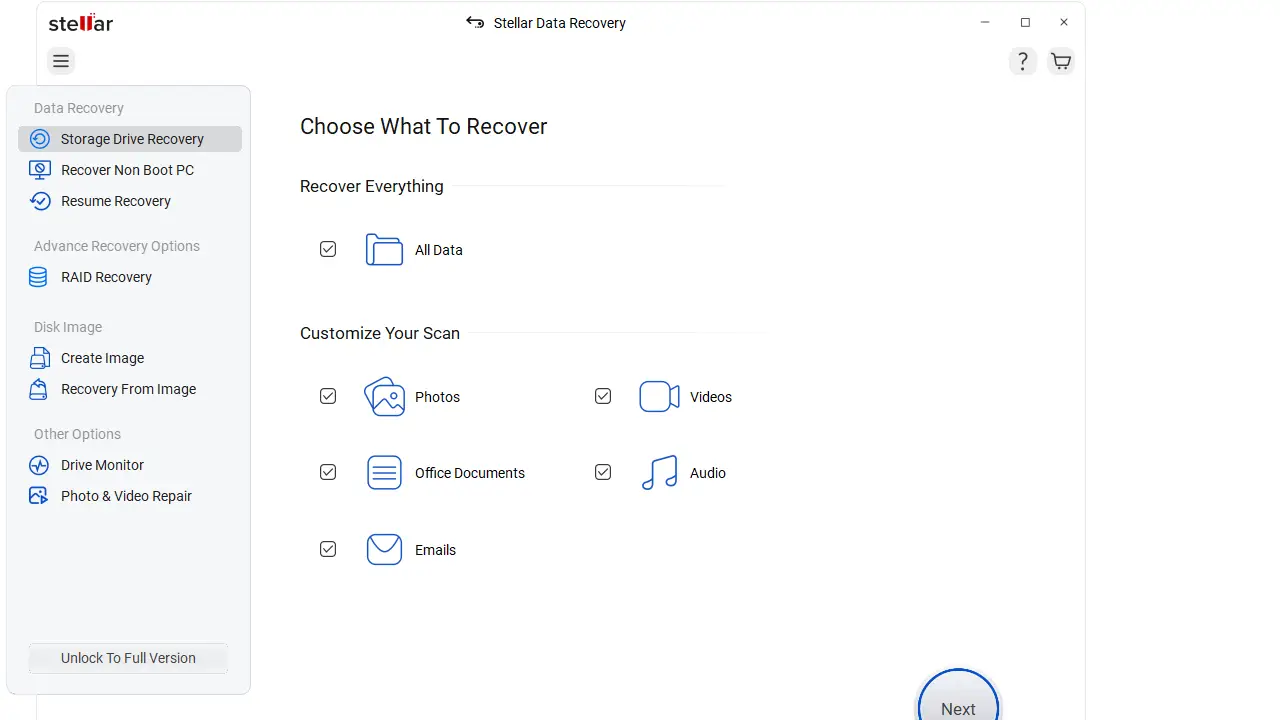
To accomplish this task, you may consider Windows data recovery software from Stellar. Stellar Data Recovery for Windows is intended to assist in recovering deleted or unavailable files in case of a particular kind of data loss. It depends on the problem and the state of your storage device but it can help you find documents, photos, videos, and other files.
It should be noted that the outcome of the process depends on the reason for the data loss, whether the damaged sectors have already been rewritten, file system type, and the state of your storage device. There is no software which guarantees recovery in all cases.
Final Thoughts
A blue screen error on a Windows PC can be annoying, especially when it occurs regularly or blocks access to your files. Nevertheless, it is important to understand that such an error does not necessarily mean that your PC is irreparably damaged.
First of all, note the stop code and look for any recent changes. Then try to complete the troubleshooting steps like disconnecting the devices, using Safe Mode, checking your drivers, system updates, system files, and memory.
When it comes to a BSOD error along with the problem of missing files or inaccessible drive, the priority should be made on securing your data first of all. It is not recommended to format the drive or perform Windows reinstallations until other options are explored.
Properly backed up files, compatible drivers, reliable hardware, and regular system maintenance will also help you to avoid the problem in the future. By applying a systematic approach, it is possible to discover the source of a blue screen, make your Windows stable and take a decision regarding your data.
University of Houston graduate with 5 years of blogging experience, excelling in content strategy, SEO, and audience engagement. Connect with me on LinkedIn.