Tech
How to Choose the Best USB-C Multiport Adapter for Students

Picture this: you’re sitting in the library with your sleek, modern laptop—the one with a single USB-C port—and you suddenly need to connect a flash drive, plug in your mouse, and hook up to an external monitor for a group presentation. That minimalist design that looked so appealing in the store now feels like a limitation. You’re not alone in this frustration. Today’s students face a common dilemma: their streamlined devices simply don’t have enough ports to handle the demands of academic life.
The solution seems straightforward—buy a USB-C multiport adapter. But walk into any electronics store or browse online, and you’ll encounter hundreds of options with confusing specifications, wildly varying prices, and conflicting reviews. How do you know which adapter actually meets your needs without breaking your student budget or leaving you with a bulky, unreliable accessory?
This guide cuts through the confusion. We’ll walk you through exactly what to look for, help you identify which features matter for your specific academic needs, and provide a clear decision-making framework so you can confidently choose a USB-C multiport adapter that transforms your laptop into a fully functional workstation without wasting money on unnecessary bells and whistles.
Understanding the Student’s Connectivity Needs
As a student, your laptop needs to adapt to multiple scenarios throughout the day. During a group presentation, you’re scrambling to connect your laptop to the classroom projector while your classmates wait. Back in your dorm, you’re editing a video project and need an external monitor for more screen space, a mouse for precision, and an external hard drive for your footage library—all at once. Between classes, you’re transferring lecture notes from a friend’s USB drive while keeping your battery topped up for the next session.

These aren’t occasional inconveniences; they’re daily realities of academic life. Photography and design students regularly work with SD cards full of high-resolution images. Computer science majors juggle multiple peripherals while coding. Even general students need reliable connections for basic tasks like printing assignments from a flash drive or presenting research findings. The challenge intensifies when your laptop is running low on battery and you need to charge it while using all these devices simultaneously.
What students truly need are affordable laptop accessories that don’t compromise on functionality. Your adapter must be compact enough to slip into a backpack pocket, light enough not to add noticeable weight, yet robust enough to survive being tossed around campus daily. It should handle the transition from library desk to coffee shop table to lecture hall podium without failing at critical moments. This combination of versatility, portability, and durability—all within a student-friendly price range—defines the ideal USB-C multiport adapter for academic success.
Key Features to Look for in a USB-C Hub
Not all USB-C multiport adapters are created equal, and the difference between a frustrating purchase and a reliable companion comes down to understanding which specifications actually matter for your academic routine.
Essential Ports for Academic Life
Start with video output capabilities. An HDMI port is non-negotiable for most students—it connects you to modern projectors, external monitors, and TVs for presentations and extended workspace. Some older classrooms still use VGA, so consider whether you encounter these legacy systems regularly or can rely on adapters when needed. For everyday connectivity, look for at least two USB-A 3.0 ports; this allows you to simultaneously connect a mouse and keyboard, or a flash drive and external hard drive without constant unplugging. If you work with photography, videography, or any media-heavy coursework, an SD or microSD card reader saves you from carrying separate dongles. Finally, ensure the adapter includes USB-C Power Delivery pass-through—this lets you charge your laptop while using all other ports, eliminating the choice between power and productivity.
Performance Specs: Data Speed and Power Delivery
The USB specification matters more than you might think. USB 3.0 offers transfer speeds up to 5Gbps, while USB 3.1 Gen 2 doubles that to 10Gbps—the difference between waiting 10 minutes or 5 minutes to transfer a large video project. For most students, USB 3.0 provides adequate speed, but media majors benefit from the faster standard. Power Delivery wattage determines whether your laptop charges at full speed or just maintains its current battery level. Match the adapter’s PD rating to your laptop’s charger: if your laptop came with a 65W charger, look for an adapter supporting at least 60W pass-through. Higher-powered laptops, particularly gaming or workstation models with 85-100W chargers, need adapters rated for 100W PD to charge effectively while multitasking.
Build Quality and Portability
Weight and size directly impact whether you’ll actually carry the adapter daily or leave it behind when it’s most needed. Adapters under 100 grams that measure less than four inches long easily disappear into any backpack pocket. Aluminum housings offer superior heat dissipation and durability compared to plastic, though they add slight weight. The cable length between the adapter and your laptop matters too—a built-in cable of 6-8 inches provides flexibility without creating cable clutter, while ultra-short designs can strain your laptop’s port if the adapter hangs awkwardly.
How to Choose: A Step-by-Step Decision Guide
Step 1: Audit Your Devices and Common Tasks
Begin by creating a simple inventory of everything you regularly connect to your laptop. Write down each peripheral: the external monitor in your dorm room, the wireless mouse you prefer for editing, the USB flash drives you share with classmates, and any SD cards from your camera. Next to each item, note how often you use it—daily, weekly, or occasionally. Then list your typical academic activities: Do you present weekly in class? Edit videos for coursework? Transfer large design files? Code with multiple screens? This audit reveals patterns you might not consciously recognize. A journalism major might discover they constantly juggle an external hard drive, SD card reader, and HDMI connection simultaneously, while an economics student primarily needs USB-A ports for a mouse and occasional flash drive access with HDMI for presentations.
Step 2: Match Ports to Your Checklist
Take your device list and translate it into specific port requirements. If you identified an external monitor, you need HDMI. A wireless mouse and keyboard mean at least two USB-A ports. Regular SD card transfers require a built-in card reader. Now compare adapter specifications against this checklist, ensuring each identified need has a corresponding port. Prioritize adapters that slightly exceed your requirements rather than exactly matching them—having one extra USB-A port provides flexibility for unexpected needs like connecting a printer in the library or borrowing a colleague’s external drive. Verify the adapter includes USB-C Power Delivery pass-through if your laptop relies solely on USB-C charging, as many modern ultrabooks do.
Step 3: Set Your Budget and Compare Brands
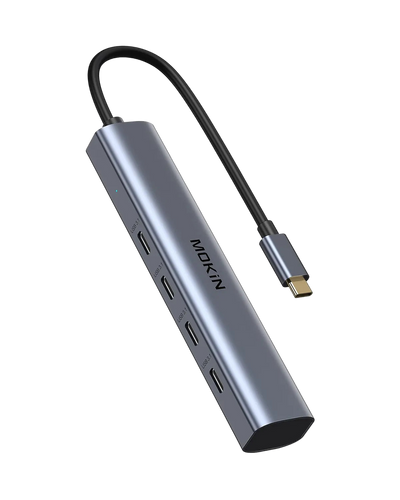
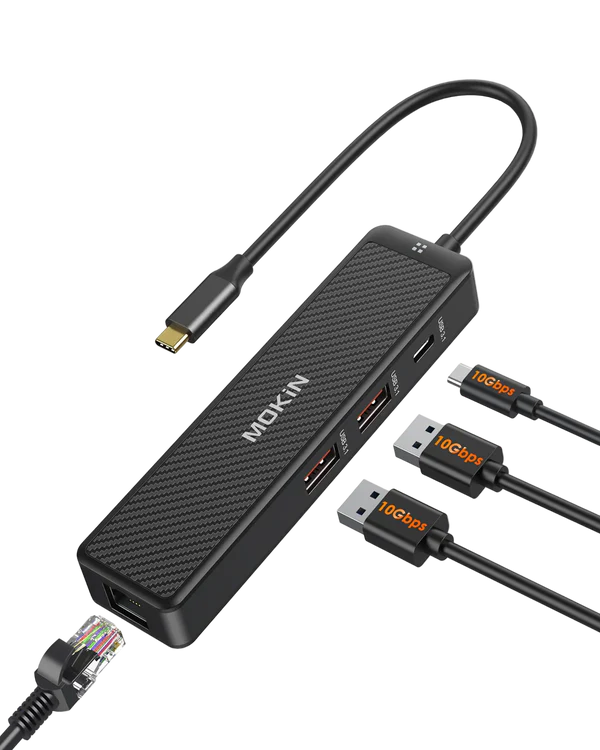
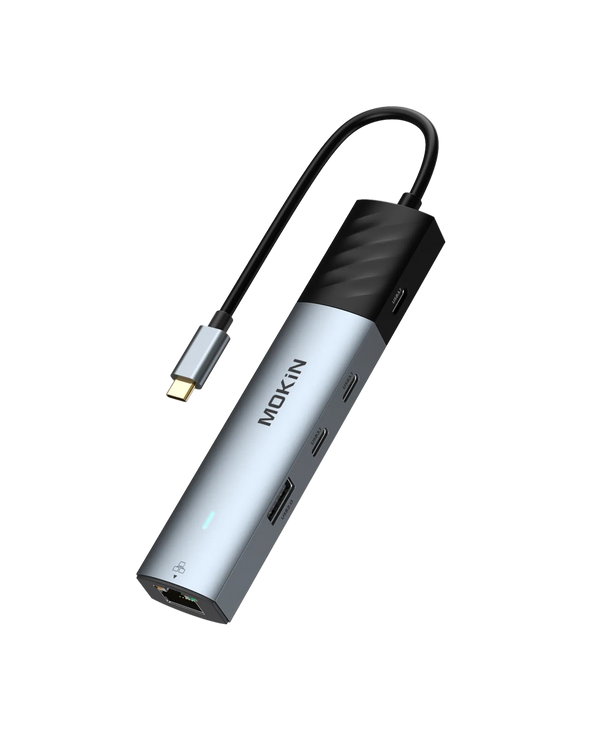
Establish a realistic spending range based on your actual needs rather than aspirational features. For basic connectivity—HDMI, two USB-A ports, and power delivery—expect to invest between twenty-five and forty dollars for reliable quality. More comprehensive hubs with additional ports, faster data speeds, and premium materials typically range from forty-five to seventy dollars. Research established brands like Anker, known for affordable reliability; MOKiN, offering well-designed options for students; Satechi, providing mid-range design-forward choices; and Belkin, delivering premium durability. Read reviews specifically from students or users with similar laptops to yours, focusing on comments about real-world durability, heat management during extended use, and whether the adapter actually delivers its advertised charging speeds. Avoid the temptation of extremely cheap unbranded adapters—they often fail within months, lack proper power regulation that could damage your laptop, or generate excessive heat during normal operation.
Top Recommendations and What to Avoid
For the budget-conscious generalist who primarily attends lectures, writes papers, and occasionally presents, focus on adapters offering HDMI, two USB-A 3.0 ports, and 60W Power Delivery in a compact design. These cover presentation needs, basic peripheral connections, and laptop charging without unnecessary extras. Media and design majors juggling large files, external monitors, and SD cards benefit from hubs featuring HDMI, at least three USB-A ports with USB 3.1 Gen 2 speeds, dedicated SD/microSD readers, and 100W Power Delivery to support power-hungry laptops during intensive rendering or editing sessions.
Steer clear of adapters with bulky designs that physically block your laptop’s adjacent ports—this defeats the purpose of expanding connectivity. Verify the Power Delivery wattage actually matches or exceeds your laptop’s charging requirements; underpowered adapters drain your battery during heavy multitasking despite being plugged in. Avoid hubs lacking proper heat dissipation features like aluminum housings or ventilation—overheating adapters throttle performance, damage connected devices, and fail prematurely. Be wary of adapters with permanently attached short cables that create awkward angles and stress your laptop’s USB-C port. Finally, skip adapters from unknown brands with suspiciously low prices and no verifiable reviews; these often use substandard components that risk damaging your expensive laptop or losing critical project files during transfers.
Making the Right Choice for Your Academic Success
Choosing the right USB-C multiport adapter doesn’t have to be overwhelming. The key lies in understanding your specific connectivity needs—whether that’s presenting weekly in lecture halls, editing media projects with multiple peripherals, or simply connecting a mouse and flash drive for everyday coursework. By prioritizing essential features like the right port combination, adequate Power Delivery wattage for your laptop, and durable yet portable construction, you can narrow down hundreds of options to the few that truly match your academic lifestyle.
A well-chosen adapter is more than just an accessory; it’s a cost-effective investment that transforms your minimalist laptop into a fully functional workstation capable of handling any academic challenge. Instead of compromising between charging your device and connecting your peripherals, or carrying multiple dongles that inevitably get lost, you gain the freedom to work efficiently wherever your studies take you.
Use this guide as your checklist when shopping. Audit your devices, match the ports to your actual needs, set a realistic budget, and avoid common pitfalls like inadequate power delivery or poor build quality. With these straightforward steps, you can confidently select a USB-C multiport adapter that unlocks your laptop’s full potential, supporting your academic success from freshman orientation through graduation day.